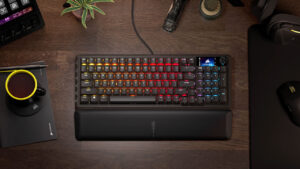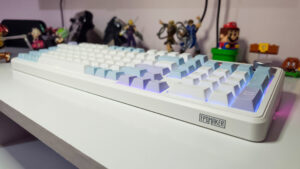


As a retired Twitch streamer, I have grown very fond of Corsair and Elgato products. My absolute favourite of them all was the Stream Deck. When given the opportunity to review the Corsair Vanguard 99 Wireless Optical-Mechanical Gaming Keyboard, I was really excited to see how it would compare to using a standard gaming keyboard and Stream Deck in tandem. I love a good mechanical keyboard, especially one that is not obnoxiously loud and clicky, and knowing that this particular product was an optical-mechanical keyboard had me really excited to try it out.
We know a top-tier mechanical keyboard usually costs a pretty penny, and Corsair is in the higher end of the tech pricing spectrum. At US$259, this keyboard is not for the average consumer, but if you want to improve your productivity, you might find great joy in it. My time with this product was honestly better than I expected, with only a few snags that weren’t total dealbreakers but things I had to get used to.
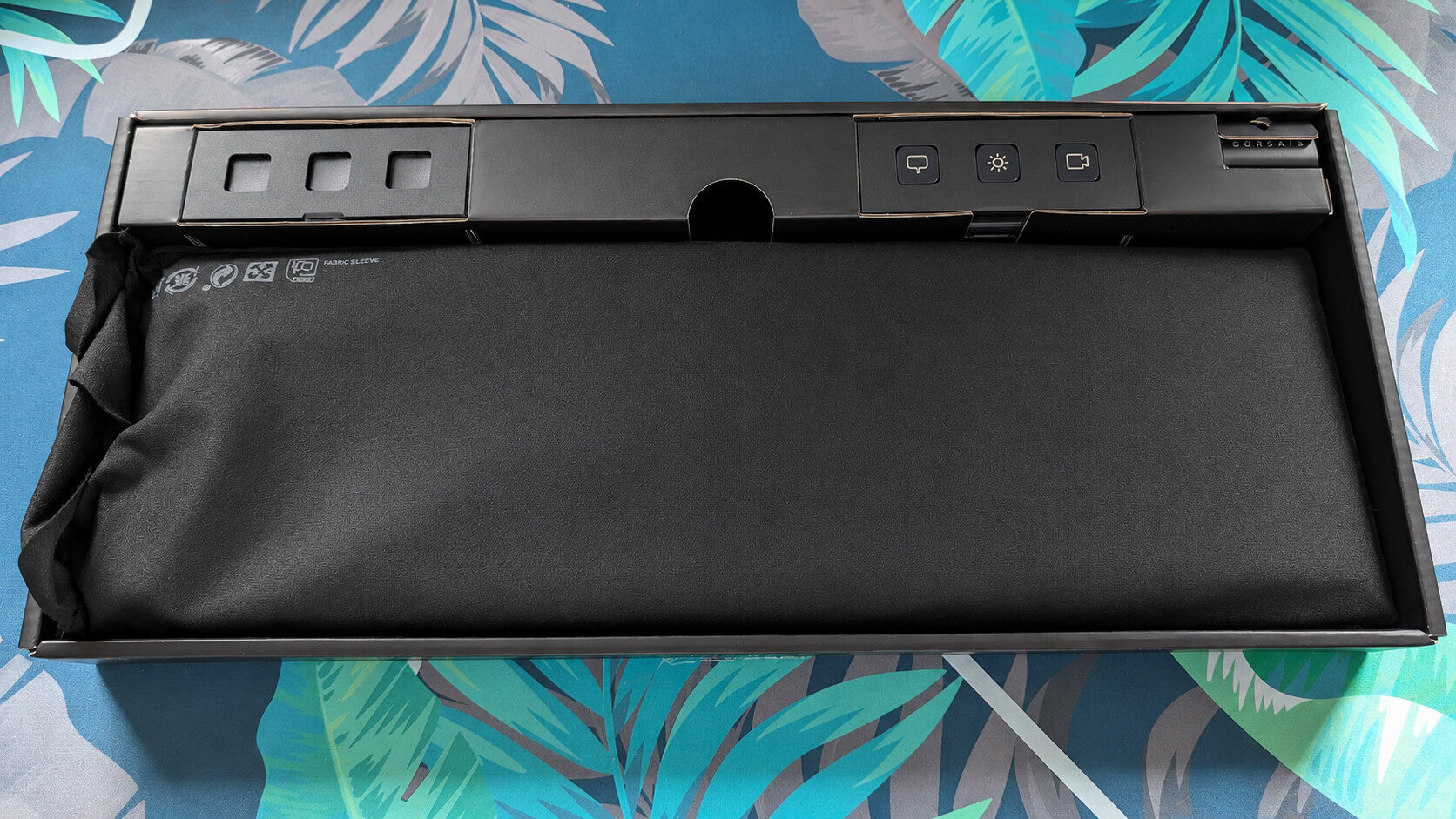
If you have been reading my reviews over the last year, you already know that I love and appreciate simple, clean packaging, which has always led to an easy unboxing. Corsair did not disappoint at all. When you open the box, you are met with the Corsair Vanguard 99 Wireless Optical-Mechanical Gaming Keyboard in a cloth bag, a stack of extra buttons and the USB-C cable. All of these items were well organized in the box and very easy to take out. You are also given a USB-A-to-USB-C converter, which I found very useful. As someone who did not have enough USB-C slots on their desktop, this was very convenient for me.
“The Corsair Web Hub was very easy to navigate and use when I was trying to optimize my setup for the Vanguard 99 Wireless Optical-Mechanical Gaming Keyboard.”
Like other wireless keyboards, the Vanguard 99 Wireless Optical-Mechanical Gaming Keyboard gives you the option to choose between wireless via Bluetooth or a wireless dongle, or wired through a USB-C cable. I tested all three modes, and they worked quite well.
The only real hiccup I encountered using this keyboard in wireless mode was returning to my desk after being away for a few minutes and having to wait a few seconds for the keyboard to wake up from standby mode. This was not a massive disturbance because that process took less than three seconds, but I know for some keyboard enthusiasts, this could be a dealbreaker.
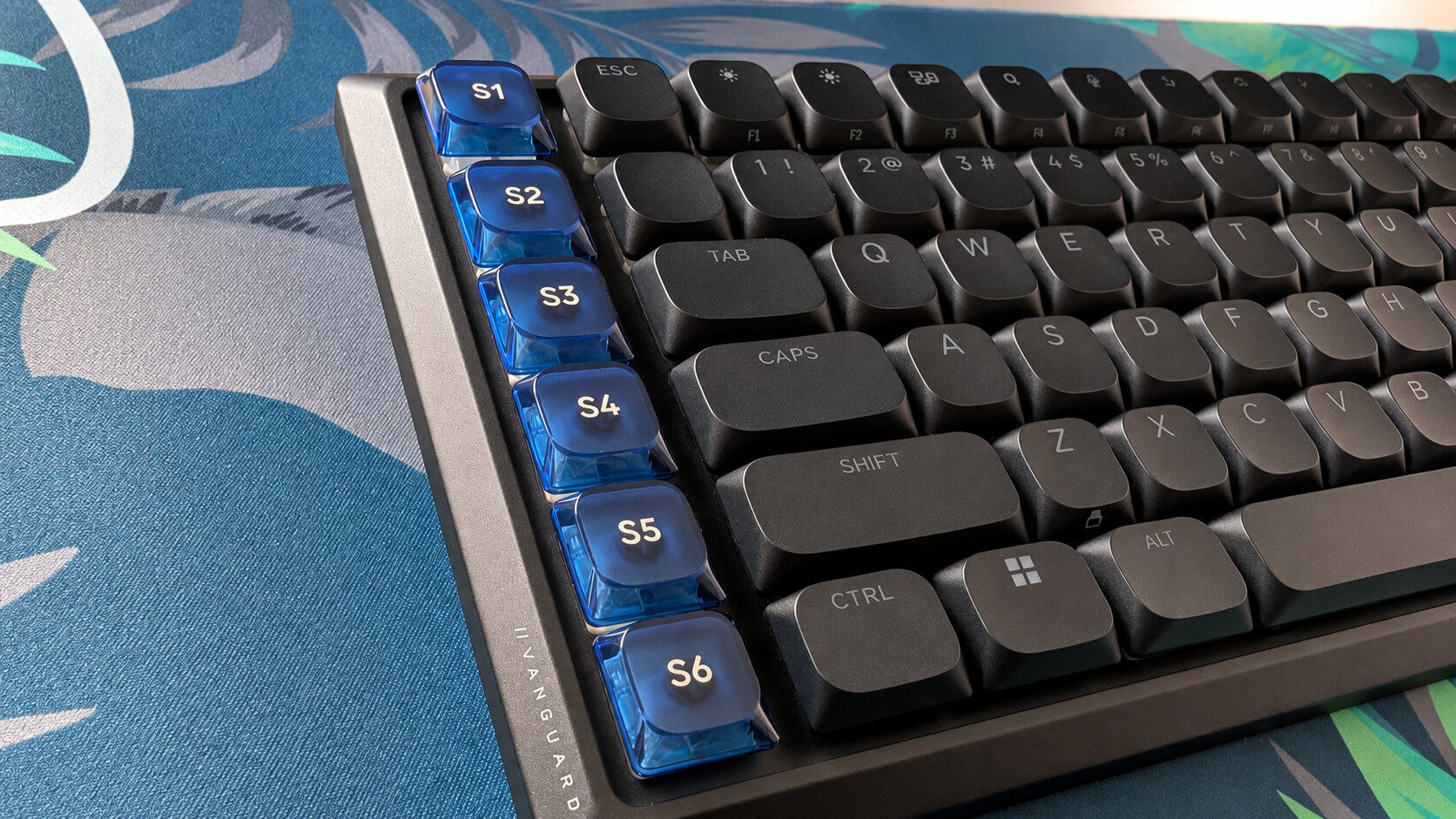
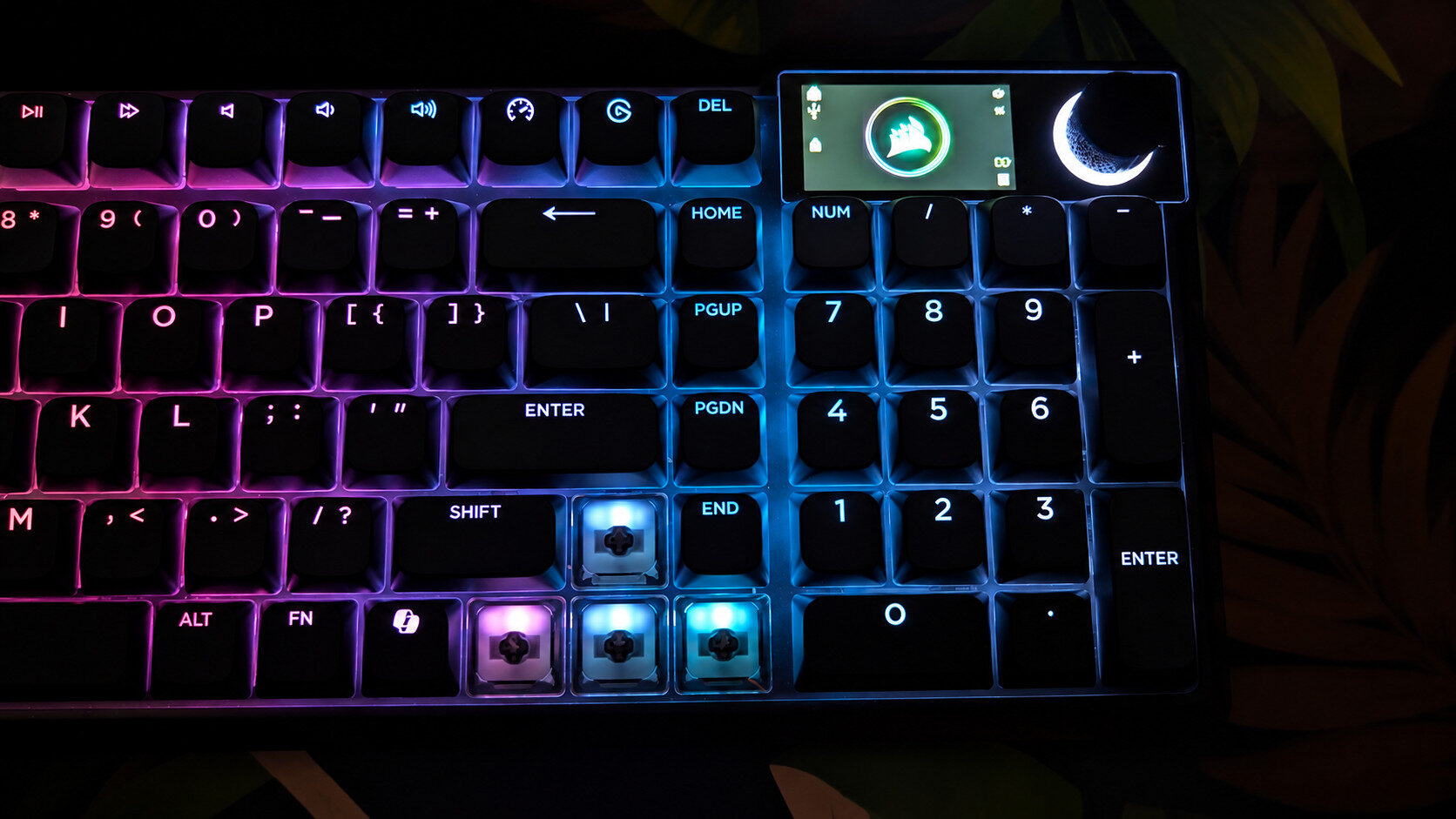
When it comes to gaming, I booted up Overwatch and jumped into a few rounds of competition to see how the gaming aspect of this keyboard would hold up. For this game in particular, I like to have the hotkeys for my abilities and ultimate programmed to my mouse for easy access. So, for the sake of science, I remapped my ultimate to S2 and my first ability to S3. It was a small adjustment, but honestly, I was not mad at it. The row of additional keys is only a short hop away from the main keyboard, so it did not feel too unnatural.
“The Corsair Vanguard 99 Wireless Optical-Mechanical Gaming Keyboard is a virtually perfect keyboard.”
My favourite thing about using the Elgato Stream Deck outside of streaming was the ability to add programs and functions to the deck for everyday use. I typically had things like volume control, quick access to programs like Spotify or the calculator, or even more advanced things like assigning a button to use my stratagem drop in Helldivers 2. What makes the addition of these extra keys so perfect on the Vanguard 99 Wireless Optical-Mechanical Gaming Keyboard is just that: they are located on the keyboard, and I do not have to use a secondary device to complete these actions.
When in the middle of a heated gaming session, it is often very convenient not to have to use a secondary device. With this particular gaming keyboard, I found it very natural to hit those extra keys, as they were already within a short distance. The Corsair Web Hub is your portal to unlocking the full potential of the Vanguard 99 Wireless Optical-Mechanical Gaming Keyboard. This hub gives you full access to the keyboard’s inner workings, from changing LED styles and checking key functionality to assigning and reordering your hotkeys. The Corsair Web Hub was very easy to navigate and use when I was trying to optimize my setup for the Vanguard 99 Wireless Optical-Mechanical Gaming Keyboard.
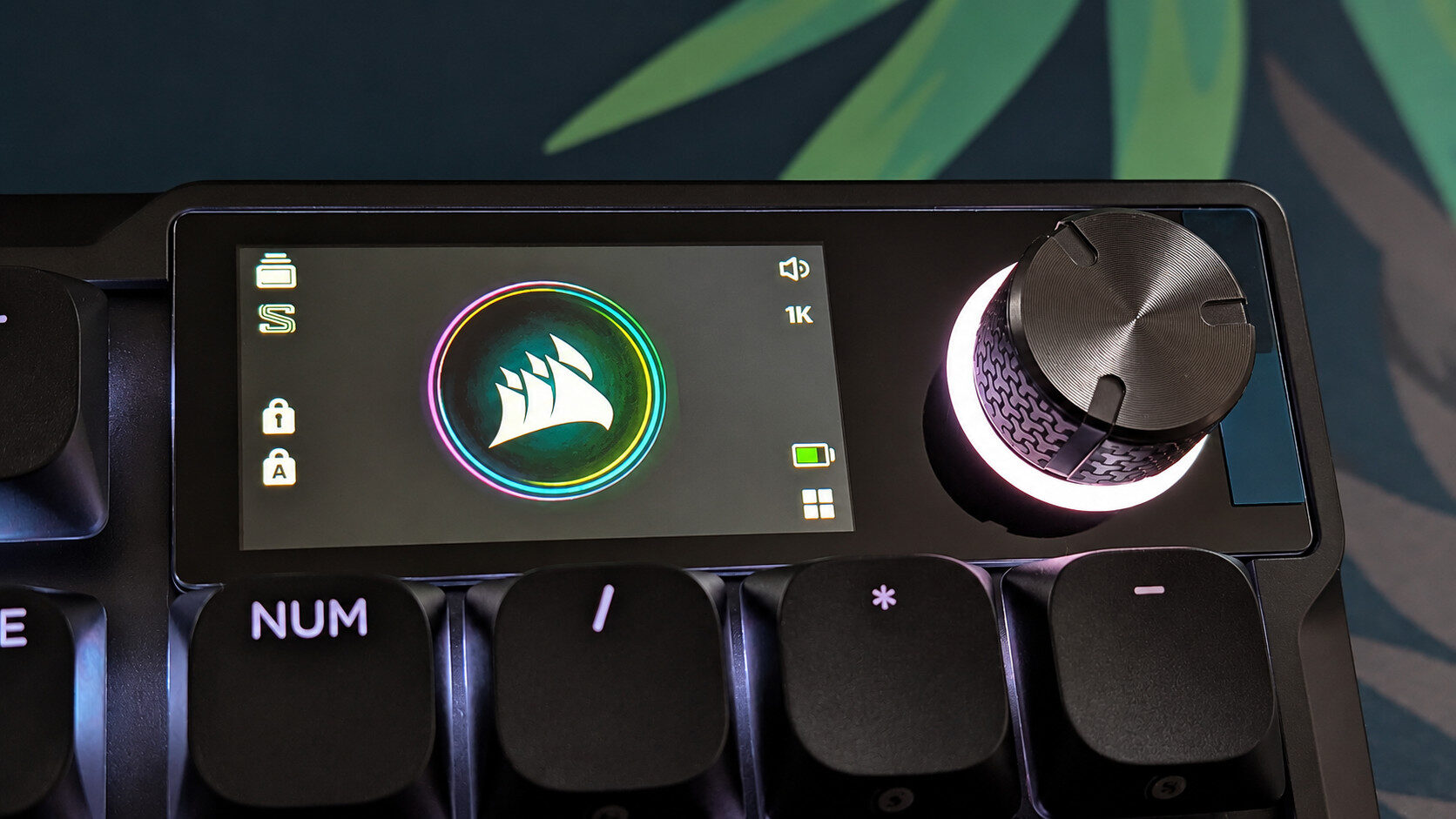
One thing I had a very hard time adjusting to was the extra row of keys. For such a subtle addition to a keyboard, it was really awkward to adjust to for everyday use. I had to literally shift my hand placement repeatedly every few minutes because I would accidentally hit one of the extra hotkeys instead of the letters or other functions on the leftmost side of the keyboard.
I was fighting with myself during the first few days, but eventually things started to make sense, and I finally got the hang of it by the end of the first week. This was very annoying when trying to complete my daily work tasks, but it was not too anger-inducing.
The Corsair Vanguard 99 Wireless Optical-Mechanical Gaming Keyboard is a virtually perfect keyboard. The key response is stellar, and the extra row of hotkeys is something I found myself using quite often. Having used the Elgato Stream Deck over the last few years for productivity functions and gaming, the idea of removing a device from my desk and replacing it with an extra row of keys was something I truly loved. Though the price point is a bit high, I can honestly say this keyboard is worth every penny. The Vanguard 99 Wireless Optical-Mechanical Gaming Keyboard has now moved into the category of one of my favourite keyboards I have ever used.
No products found.