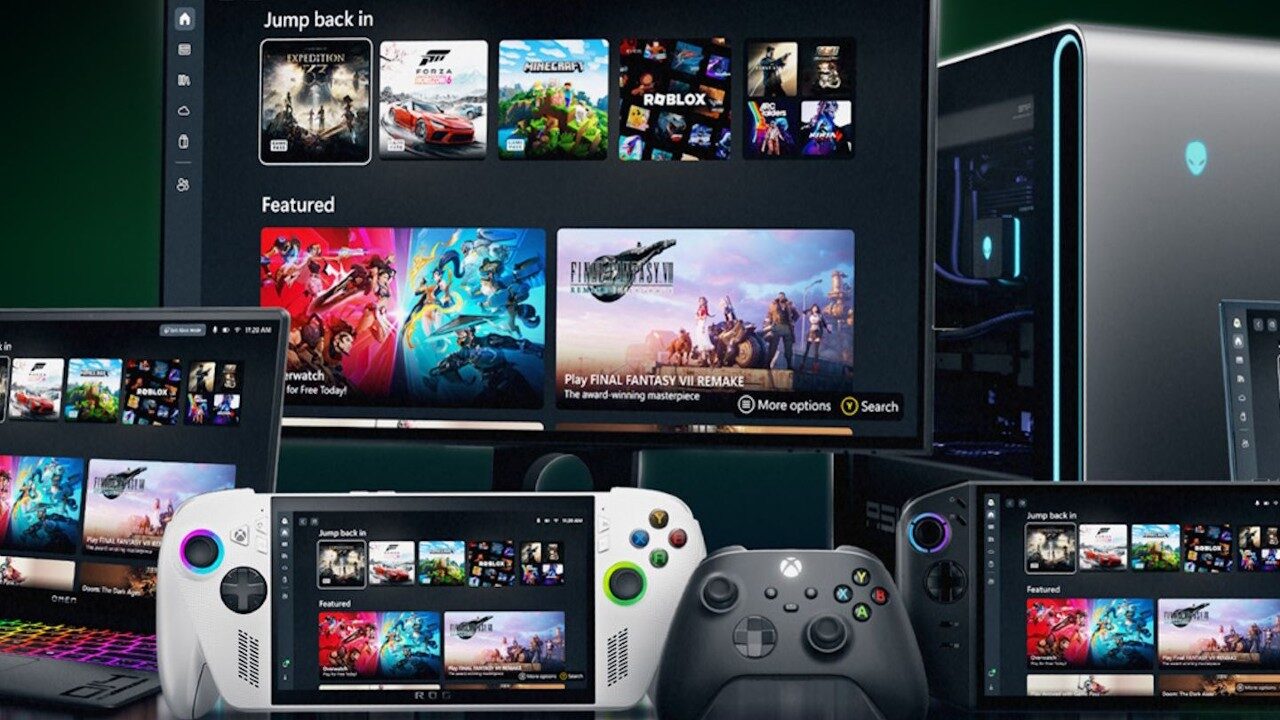
Microsoft has officially started rolling out its “Xbox Mode” for Windows 11 devices, including laptops, desktop PCs, and tablets.
The mode is supposed to bring a “console-inspired Xbox experience” to PC players, with a streamlined interface that puts your game library front and center while minimizing all the other functions of your PC. Per Xbox Wire, here’s what you can do with Xbox Mode.
- Browse and launch games using a controller-optimized interface.
- Jump back and forth between Xbox mode and the Windows 11 desktop whenever you want.
- Access an aggregated game library, including the full games catalog from Xbox Game Pass, and installed games from leading PC storefronts.’
Xbox Mode was first introduced with the ROG Xbox Ally X handheld and was formerly known as “full screen experience.” You can see our full breakdown of the handheld and that experience in our review, where we say, “The ROG Xbox Ally X is the handheld console that makes sense for Xbox gamers who dabble in PC gaming too, with some boosted performance from last year’s ROG Ally X. I just really hope to see less peripheral issues in the future.”
Microsoft says it has listened closely to player feedback for the mode and is continuing to evolve the experience across devices. And that feedback has directly impacted this Windows 11 experience. In the Xbox Wire announcement, Microsoft also commits to “continue evolving Xbox mode based on your feedback.”
Additionally, you can now see the updated Xbox logo via the mode and on dynamic backgrounds, as announced by CEO Asha Sharma.
Currently, Xbox Mode is only available in certain markets, but it will be gradually rolling out to other markets over time to make sure the implementation works. If you’d like to use the mode as soon as it’s available in your market, here are the steps you need to take.
- Open Settings on your Windows 11 PC
- Select Windows Update
- Turn on Get the latest updates as soon as they are available